 Skippa
Watches for banners
Skippa looks for cookie consent prompts on every site you visit, including the ones hidden inside frames and pop-ups.

Every website asks the same question. Skippa answers it for you — cookie banners are dismissed the moment they appear, so pages open ready to read.
No taps. No interruptions. Just the page you came for.
Overview
Browse without interruptions.
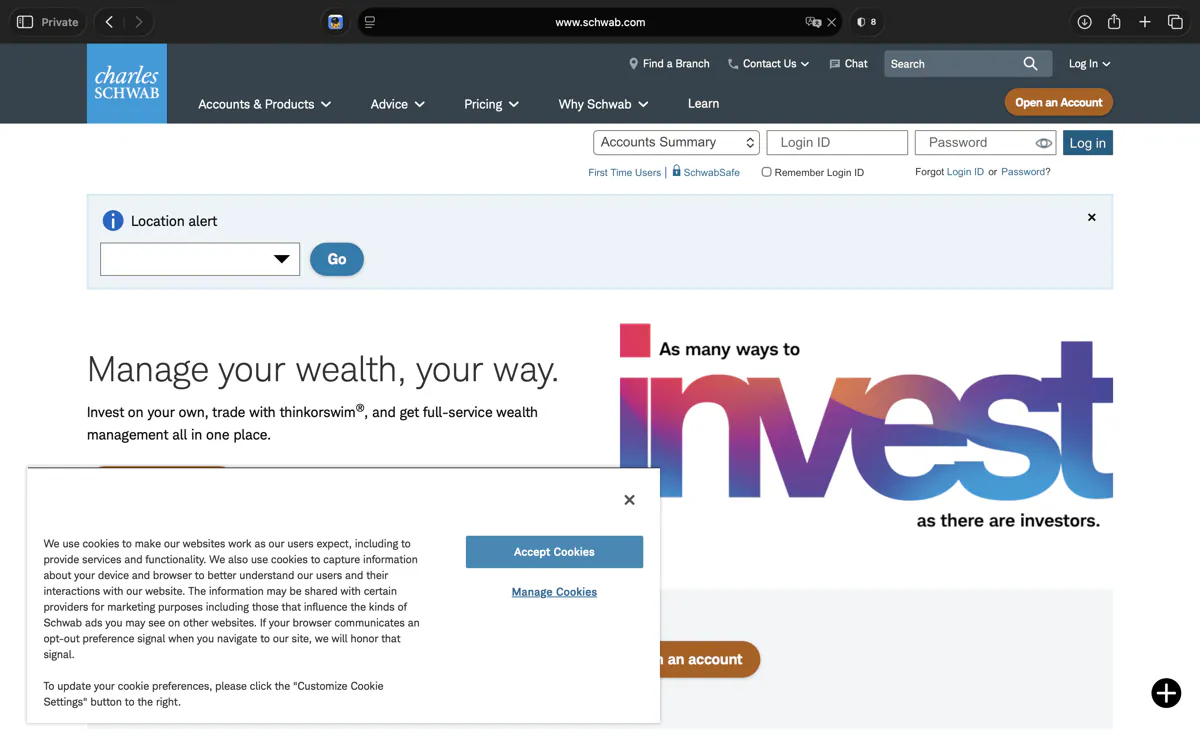

Skippa looks for cookie consent prompts on every site you visit, including the ones hidden inside frames and pop-ups.
it recognizes 30+ consent platforms (OneTrust, Cookiebot, Didomi, Quantcast, TrustArc, Usercentrics, Sourcepoint and more) and accept buttons in 25+ languages, then dismisses them instantly.
pause Skippa anytime, globally or on a single site, right from the Safari toolbar.
Coverage
Skippa only ever presses accept and close. It never touches "Manage settings", "Reject", "Learn more" or sign-in buttons, and it stops working on a page once it is clear — no endless clicking in the background.
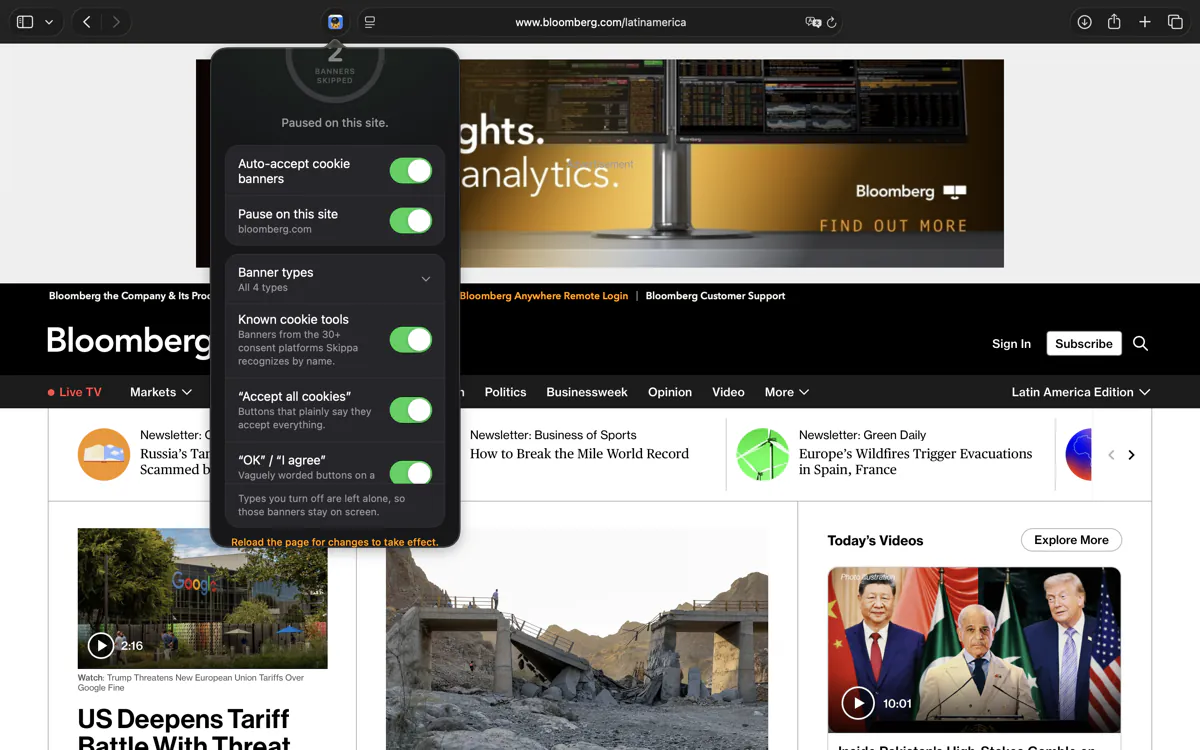
Banner Types
Banners from the 30+ consent platforms Skippa recognizes by name, like OneTrust and Cookiebot. The most reliable kind.
Buttons that plainly say they accept everything, in any of the 25+ supported languages.
Vaguely worded buttons on a cookie notice. Clear in context, but the wording alone doesn’t say what you agreed to.
Notices with no accept button, where closing them is the answer. Skippa only clicks these when nothing better is on the banner.
Types you turn off are left alone, so those banners stay on screen for you to answer yourself. Changes apply to pages you load from now on.
Safari

Questions, or a site that needs fixing? rapps.sup@gmail.com
Email supportrapps.sup@gmail.com